

The Google Voice Chat Exporter lets you...
- Save a Google Voice conversation as one file: every message, who sent it, when, and the photos
- Export the whole history, chosen years or a date range, and split long conversations into one file per year
- Read the result in any Markdown viewer, print it to PDF, or open it with the ZIP tools you already have
It runs in your browser, on the Google Voice page you already have open, and saves the conversation as MDZip (.mdz). Your messages aren't sent anywhere: the exporter reads the conversation from the page, downloads its photos from Google, and saves the file on your computer.
Why you need it
Google Voice has no way to save a conversation. You can take screenshots one screen at a time, or ask Google Takeout for a copy of your data, which has problems of its own:
- It's all or nothing. Takeout exports every call, text and voicemail with every contact. You can't pick one conversation or a date range.
- One conversation becomes hundreds of files. Texts come as a separate web page for each messaging session, so a contact you text often turns into dozens or hundreds of files to sort and stitch back together.
- You wait. Google builds the export in the background and emails you when it's ready.
Takeout is the right choice for a full backup of your account. To save one conversation, use the exporter.
Install
- Install a userscript manager. It's a browser extension that runs small scripts on the sites you choose. Violentmonkey and Tampermonkey work in Chrome, Edge and Firefox.
- Open the exporter on Greasy Fork and choose Install this script. Your userscript manager shows what it is and asks you to confirm the install.
- Open (or reload) voice.google.com.
Your userscript manager installs updates automatically.
Export a conversation

- Open the conversation in Google Voice.
- Click the export icon in the conversation's header. You can also start it from your userscript manager's menu.
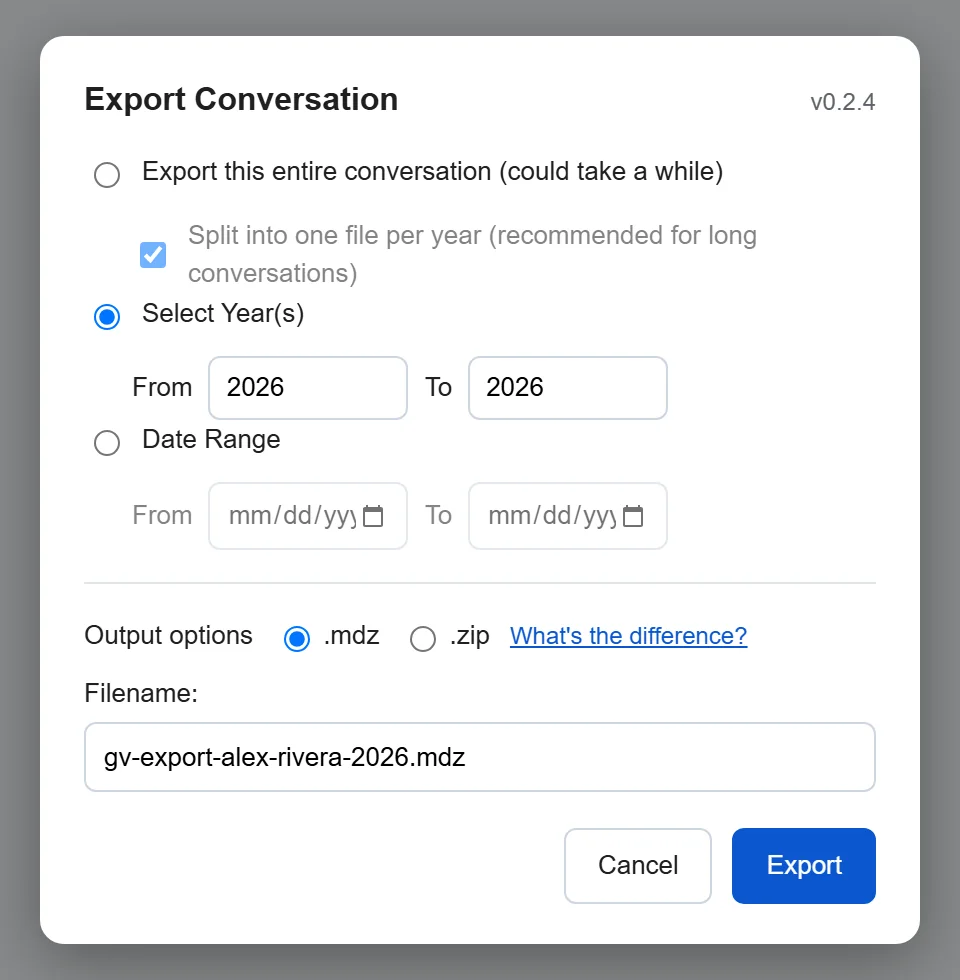
- Choose what to export: the entire conversation, selected years, or a date range. Long conversations are split into one file per year unless you turn that off.
- Choose Export and leave the tab open. The exporter scrolls back through the conversation to load its history, which can take a while for a long one, then downloads the file.
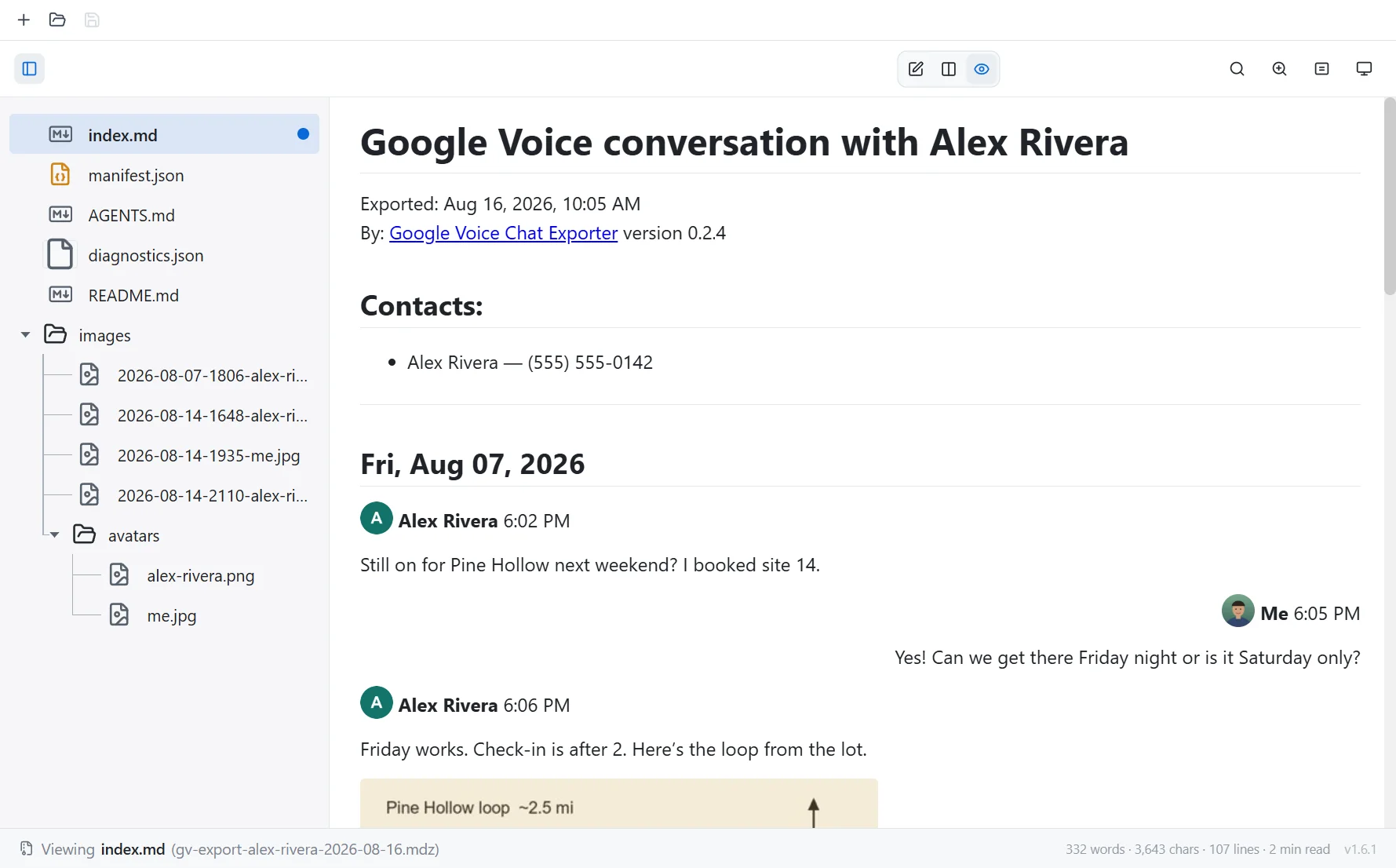
You get a file named after the conversation and the date, such as gv-export-alex-rivera-2026-08-16.mdz. You can change the name in the export dialog.
Open the file
An .mdz is a ZIP file holding the conversation as Markdown text, plus the photos and other attachments it shows.
- In your browser: drop it on the MDZip editor. Files open on your computer; nothing is uploaded.
- In an app: MDZip Studio on Windows and Linux, or the VS Code and Obsidian plugins.
- Without any MDZip tool: rename it to
.zipand extract it, or choose.zipin the export dialog to begin with. Openindex.mdin any Markdown editor, or look through theimagesfolder.
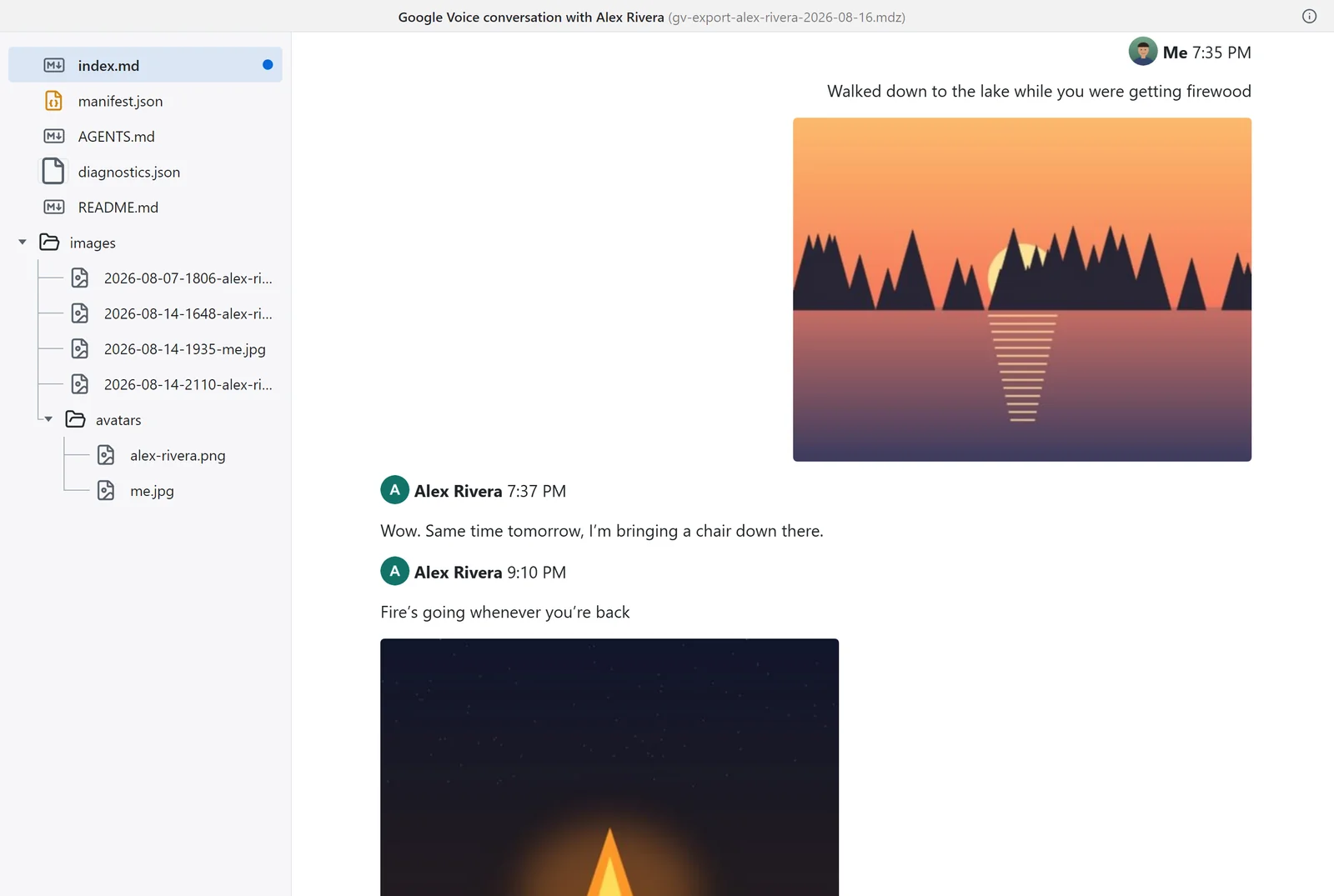
To keep a printed copy or a PDF, open the file in any of these and print it.
What's in the file
gv-export-alex-rivera-2026-08-16.mdz
├── index.md          the conversation, one heading per day
├── images/           the photos, named by date and sender
├── assets/           other attachments, such as videos
├── manifest.json     title and export time
├── README.md         what this file is, for anyone without MDZip tools
├── AGENTS.md         how AI assistants should read it
└── diagnostics.json  counts from the export, for troubleshooting
Because the conversation is plain text, you can search it, paste it into Word, or hand it to an AI assistant, and it stays readable whatever happens to Google Voice.
Good to know
- It exports the conversation you have open, one at a time. There's no way to export every conversation at once (use Google Takeout for that).
- Keep the tab open while it runs. Google Voice only loads older messages as it scrolls back, so long conversations take time.
- It reads the page as you see it. Google Voice has no export feature to build on, so if Google changes the page, the exporter may miss something until it's updated. When something can't be read, the file says so.
- The file holds the conversation as it is, names and phone numbers included. Nothing is removed or blurred, so check it before you share it.
- In Chrome and Edge, your userscript manager may need Allow User Scripts or Developer mode turned on before scripts run. Its setup page explains how.
- The exporter isn't made by or affiliated with Google. Google Voice is a trademark of Google LLC.
More
- The exporter on Greasy Fork
- Source, issues and releases on GitHub
- How it's built: one script file that uses
@mdzip/core-jsto write the archive - Other MDZip tools
This page renders from google-voice.mdz (MDZip, ~166 KB, updated 2026-11-02) — one self-contained file. Download it, open it in the web editor, or read how these pages are made.