
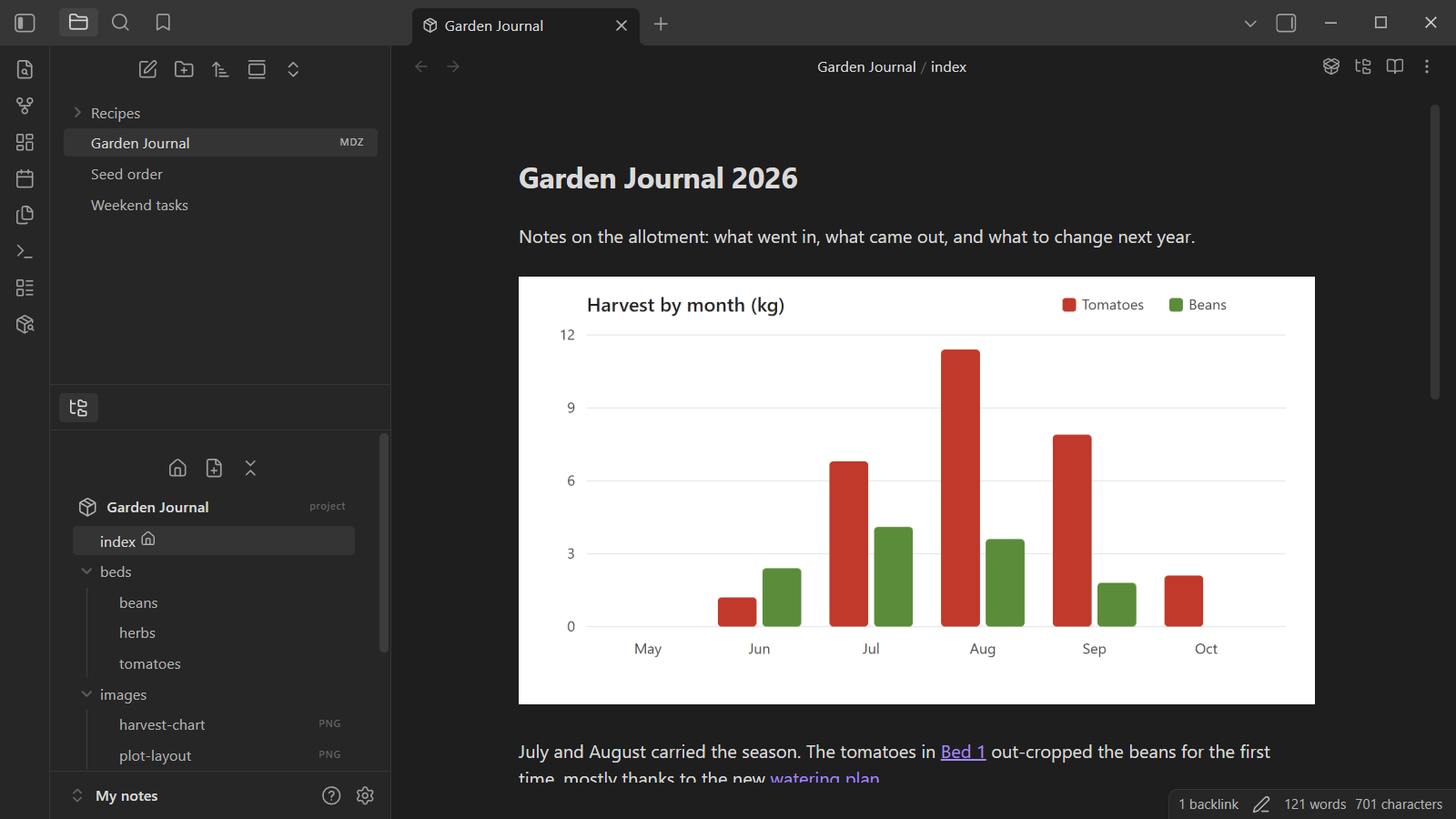
The MDZip plugin for Obsidian lets you...
- Open and edit
.mdzfiles in Obsidian's own editor, with live preview, reading view, properties and your hotkeys, just like any other note - Keep a note's images inside the note: pasted images go into the
.mdz, not into a vault folder - Work with archives that hold many documents, link between them and your vault, and see them in graph view and search
Why .mdz for Obsidian notes
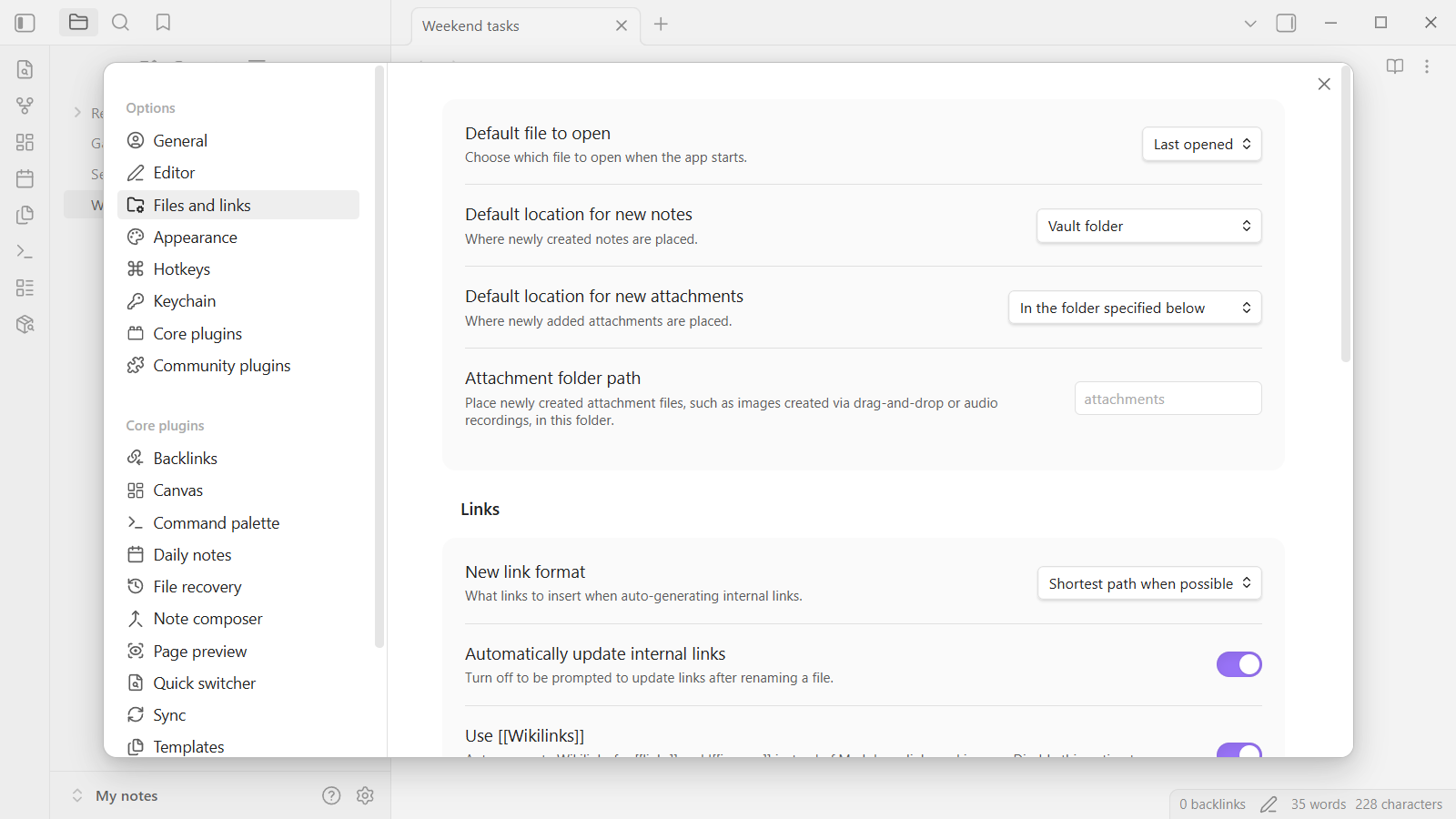
An Obsidian note and its images are separate files. Pasted images land wherever Settings → Files and links → Default location for new attachments puts them: the vault root, an attachments folder, or a subfolder beside the note. Links like ![[Pasted image 20260222174230.png]] work because Obsidian looks the name up across the whole vault, not because the path is right.
That's convenient inside the vault, and fragile outside it. Send the .md to someone, move it to another vault, or open it in another editor, and the images are missing or the links point nowhere.
An .mdz keeps the note and every image it uses in one file. Share it, back it up or move it, and it still opens with its pictures, in Obsidian with this plugin, in MDZip Studio, in VS Code, in your browser, or with any ZIP tool.
Install
Coming soon. The plugin isn't released yet. Once it is, you'll install it from Obsidian: open Settings → Community plugins, choose Browse, search for MDZip, then Install and Enable.
To follow its progress, watch the plugin on GitHub.
Getting started
- Open an
.mdz: click it in the file explorer. It opens in Obsidian's editor like any note, and the images packed inside it show in every mode. - Edit and save: just type. Changes save into the
.mdzautomatically, and Ctrl+S (Cmd+S) saves at once. Only the document you're editing is rewritten; everything else in the archive is kept exactly as it was. - Add an image: paste it or drag it onto the note. It's stored inside the archive, in an
images/folder next to the document. - Turn a note into an
.mdz: right-click it and choose Convert to MDZip, or paste an image into it and choose Convert when asked.Note.mdbecomesNote.mdz, links to it are updated, and the images it already shows are copied in. - Export a copy: MDZip: Export note as .mdz packs the current note into a new
.mdzbeside it and leaves the note alone.
Archives with many documents
An .mdz can hold a whole project: a handbook, a set of meeting notes, a small wiki. The plugin opens it on its main page, and you move around it the way you move around your vault:
- Follow links between its documents (Markdown links, wikilinks and HTML links), with back and forward history. Ctrl/Cmd-click opens a new tab.
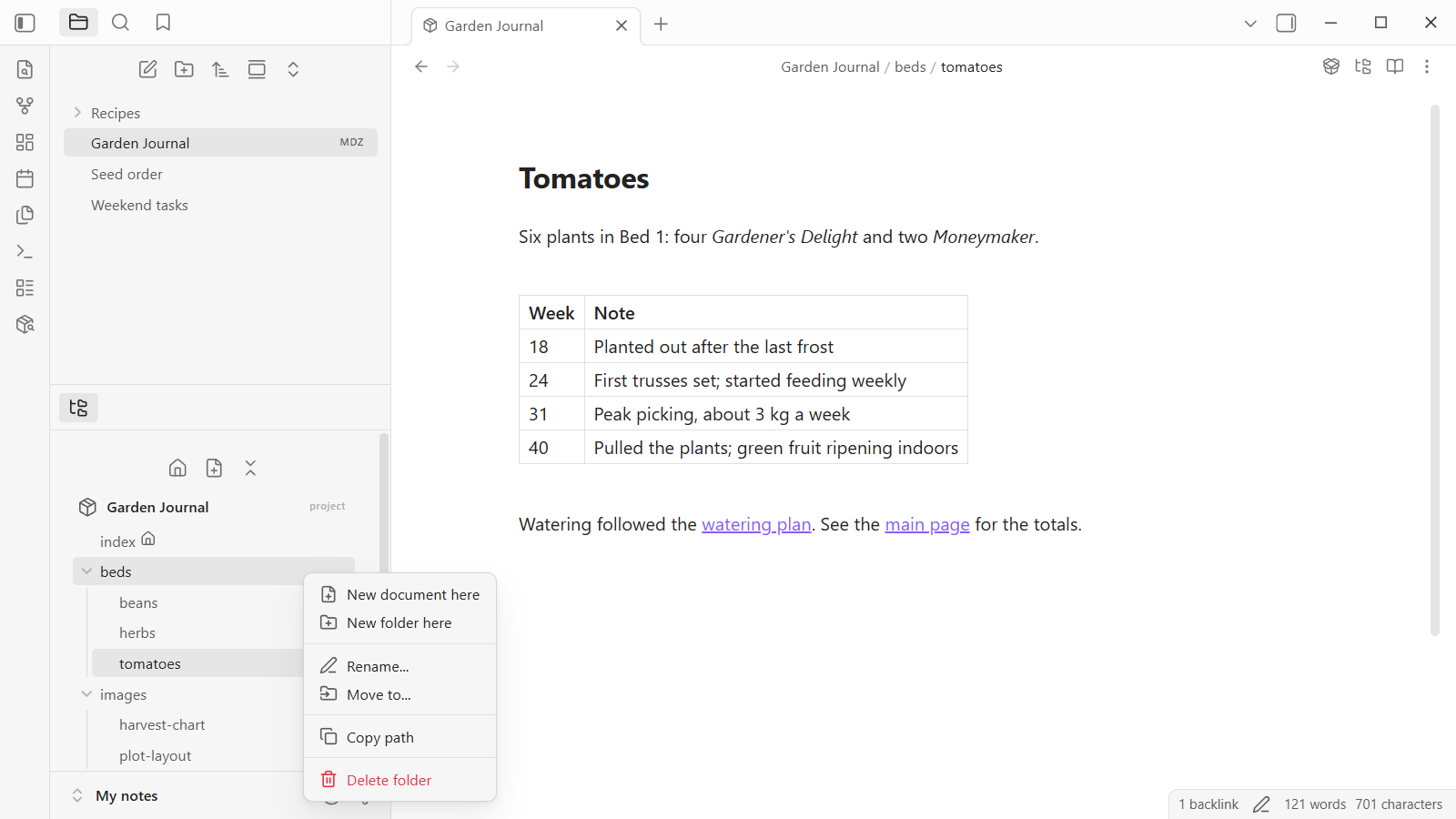
- Archive contents pane: the folder-tree icon in an
.mdztab shows everything inside the archive, with the main page first and the current document highlighted. Click to open; images and the manifest open in a preview. - Organize: add documents and folders, rename, move (drag and drop works), delete, and choose which document is the main page. When something moves, every link to it inside the archive is updated for you.
- Add a
README.mdorAGENTS.md, filled in for the archive, so people without MDZip tools, and AI agents, know how to handle it.
Links between your vault and archives
- From a note in your vault,
[Design](Project.mdz/docs/design.md)opens a document inside an archive, and[Project](Project.mdz)opens its main page. - From inside an archive,
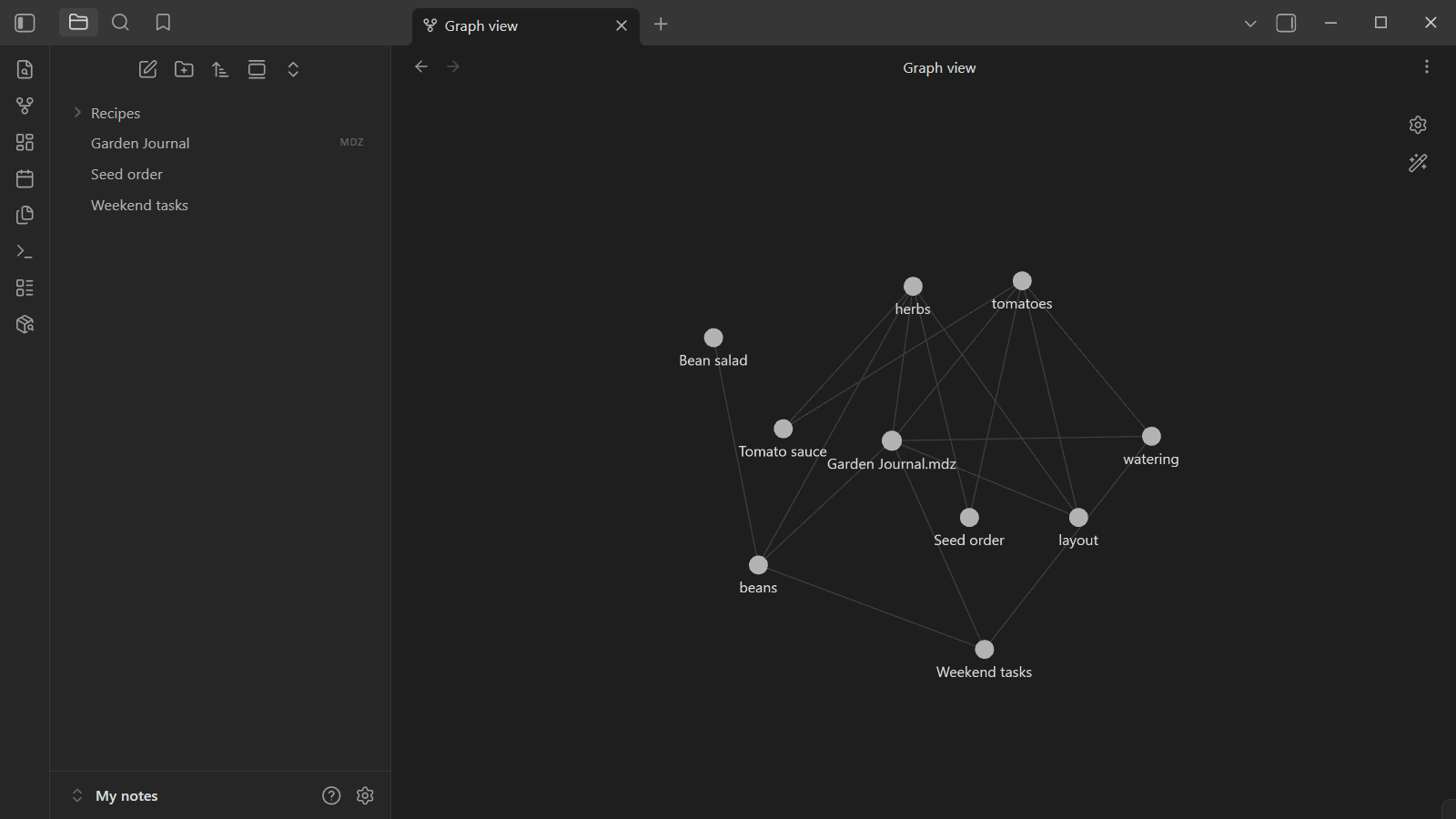
[Notes](../Notes.md)reaches a note next to the.mdz, and../Other.mdz/guide.mdreaches into another archive. - Graph view shows the documents inside every archive, with the links between them and your notes.
- MDZip search (ribbon icon, or MDZip: Search inside .mdz files) searches the text of every document in every archive as you type.
- Archive links panel lists what links to and from the document you're in, including links Obsidian's own backlinks pane can't see.
Settings
Under Settings → MDZip:
| Setting | What it does |
|---|---|
| Images pasted into Markdown notes | Ask each time, convert the note to .mdz so the image travels with it, or save to the vault as usual. |
| Images pasted into archives | Write a Markdown image, an HTML image (with size and alignment), or ask each time with an Insert image dialog, as in MDZip Studio and the VS Code extension. |
| Show vault images linked from archives | Let a document inside an .mdz show images from your vault that it links to, such as . Off by default, so an archive someone sends you can't display files from your vault. |
Good to know
- Obsidian's own search, quick switcher and backlinks pane only see
.mdfiles. Use MDZip search and the Archive links panel for documents inside archives. Links from your notes into an archive look faded (unresolved) in those notes, but clicking them works. - Moving files inside an archive updates links inside it, but not links to it from your other notes: a note that links to
Project.mdz/docs/design.mdneeds editing by hand ifdocs/design.mdmoves. - With the "Relative path to file" link format, Obsidian's link suggestions inside an
.mdzcome out one../short, because Obsidian treats the archive as one file. The shortest-path and wikilink formats aren't affected. - Large archives (over 25 MB) save after 30 seconds instead of 2, because every save rewrites the whole file.
More
- Source, releases and issues on GitHub
- Other MDZip tools: MDZip Studio, VS Code, the
mdzcommand line, and the browser tools - How the format works, including the links into and out of archives the plugin supports
This page renders from obsidian.mdz (MDZip, ~306 KB, updated 2026-10-21) — one self-contained file. Download it, open it in the web editor, or read how these pages are made.