

The MDZip Editor for VS Code is...
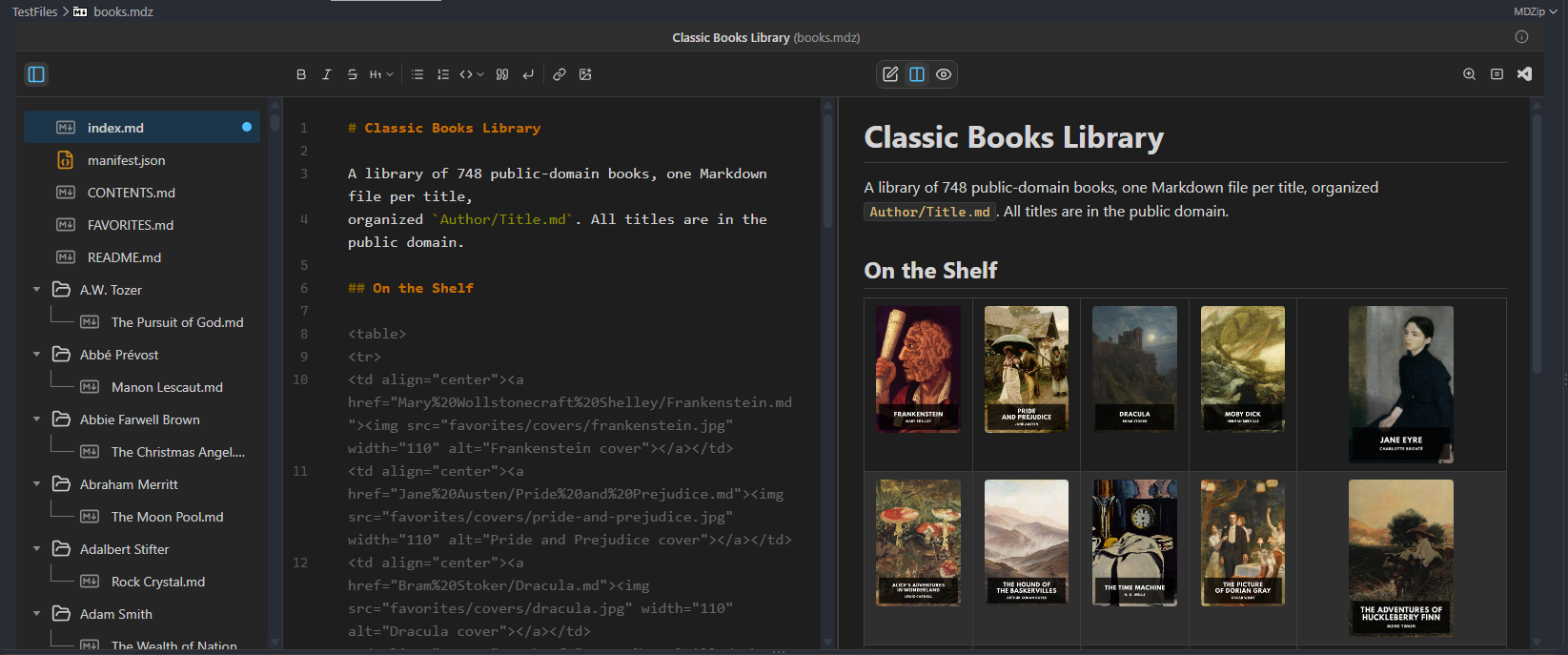
- An editor for
.mdzfiles inside VS Code: preview, edit, or both side by side, with the images packaged in the file - A way to create
.mdzdocuments from templates, or by converting a.mdfile you already have - A bridge for AI agents: its built-in MCP server lets an agent read an
.mdz, images included, and update the document safely
Getting started
- Install the extension from the VS Code Marketplace, or search for MDZip in the Extensions view.
- Click any
.mdzfile in the Explorer. It opens in the MDZip editor, in Preview. - Use the Preview, Edit and Split buttons in the toolbar to read, edit, or do both side by side.
- Save with Ctrl+S (Cmd+S on macOS). Save As and Revert work as for any VS Code file.
Plain .md files can open in the same editor too: right-click one and choose Open With... → MDZip Editor. VS Code's own Markdown editor stays the default for them.
Writing and editing
- Live preview of GitHub-flavored Markdown, with code highlighting, Mermaid diagrams, footnotes and task lists.
- Paste images straight into a document: the image is stored inside the
.mdzand the Markdown link is added for you. - Contents pane to browse everything packaged in the archive: documents, images and other files.
- Document title, set from the toolbar and stored in the archive's manifest.
- Color scheme that follows your VS Code theme, or Light or Dark if you prefer.
- Page width: Narrow, Default, Wide or Full Width, from the toolbar. Your choice applies to every open editor and is saved in your settings.
- Copy from the preview as plain text, formatted text (images included, for Word or email), HTML, or the whole document as Markdown.
Creating .mdz documents
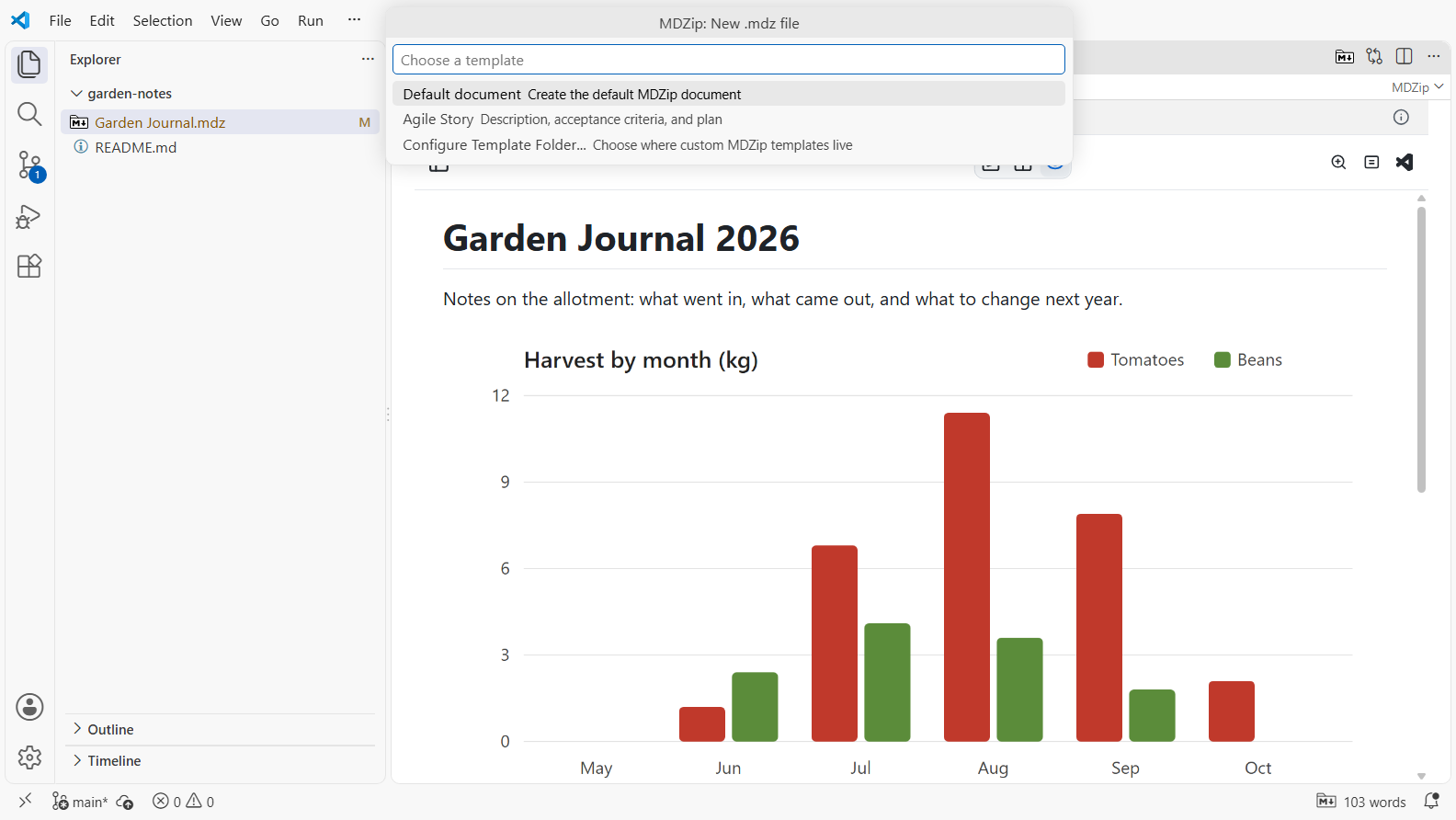
- New document from a template: run MDZip: New .mdz file... from the Command Palette (Ctrl+Shift+P) or a folder's right-click menu, and pick Default document, Agile Story, or one of your own templates.
- Your own templates: point MDZip: Configure Template Folder at a folder of templates. A template can include Markdown, images and other files, use placeholders such as
{title},{date}and{filename}, and prompt for values of its own. - Convert a
.mdfile: right-click it and run MDZip: Convert .md To .mdz. The new.mdzis written beside it and opens in the editor. - Convert a folder: right-click a folder of Markdown files and images and run MDZip: Convert Folder to .mdz.
- Extract an archive to a folder with MDZip: Extract to Folder when you need the loose files.
New documents include an AGENTS.md guide for AI agents unless the template turns it off. To add one to an existing archive, right-click it and run MDZip: Add AGENTS.md to Archive.
Comparing changes with Git
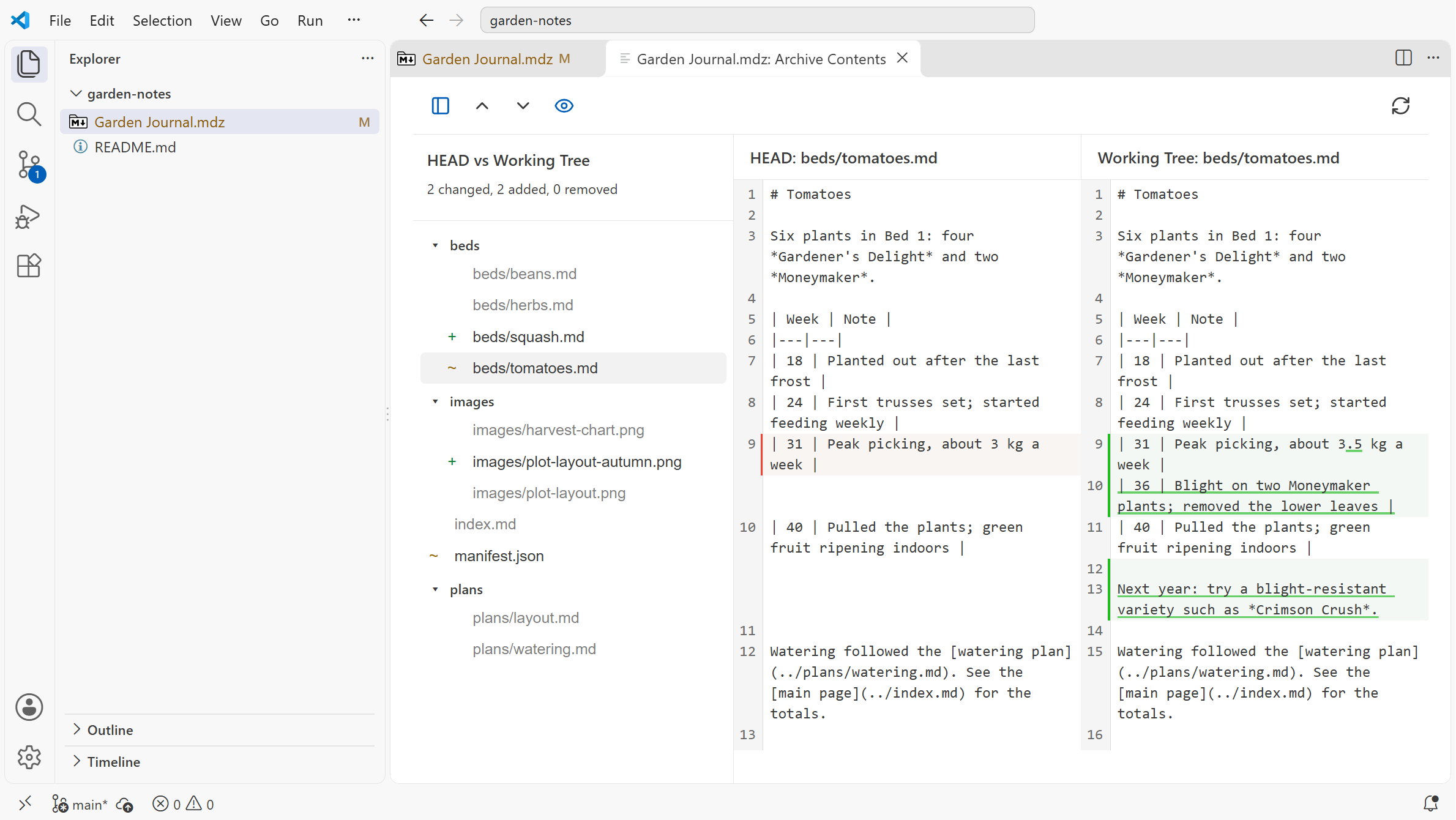
.mdz files are ZIP archives, so Git sees them as binary. The extension compares what's inside instead:
- MDZip: Compare Document Markdown with Git Base shows the document's Markdown changes since the last commit.
- MDZip: Compare Archive Contents with Git Base shows every file inside the archive that was added, removed or changed.
- MDZip: Compare Markdown compares two documents.
For AI agents
The extension includes an MCP server, so AI agents in VS Code (and other tools that speak MCP) can work with .mdz files without extracting them. In recent VS Code versions it's offered to agents automatically; approve the prompt to trust and start it. MDZip: Open MCP Server Status shows whether it's running.
With it, an agent can:
- review a document, getting its Markdown and the images it uses in one step;
- search an archive, list its contents, and read any text or image inside it;
- update the main document, with a check that refuses to overwrite changes made since the agent last read it.
To use the server from other tools or set it up by hand, the extension has setup commands for VS Code (MDZip: Enable Workspace MCP Server and MDZip: Enable User MCP Server), Claude Code (MDZip: Enable Claude Code MCP Server, for the workspace or your user settings) and Codex (MDZip: Enable Codex MCP Server), and MDZip: Copy MCP Server Config Snippet for anything else. MDZip: Enable Workspace Agent Instructions adds guidance to .github/copilot-instructions.md so agents use these tools for .mdz files.
Settings
Open Settings and search for mdzip.
| Setting | Default | What it does |
|---|---|---|
mdzip.previewWidth |
"default" |
Width of the rendered page: narrow, default, wide or full. The page width button in the toolbar changes it. |
mdzip.remoteImages |
on | Show images loaded from https:// addresses. Turn it off to stop documents from contacting other servers when they're opened. Plain http:// images are always blocked. |
mdzip.templates.path |
empty | Your main templates folder. |
mdzip.templates.additionalPaths |
empty | More template folders. |
Requirements
- VS Code 1.116 or later.
- Other editors based on VS Code (VSCodium, Cursor and similar) can install the
.vsixfile attached to each GitHub release with Extensions: Install from VSIX....
If an image doesn't show
Paths inside an archive are matched exactly, including capitalization: Images/Logo.png won't find images/logo.png. Check that the link in the Markdown matches the file name in the contents pane.
More
- VS Code Marketplace listing
- Source, releases and issues on GitHub (what's new)
- Other MDZip tools: MDZip Studio, the
mdzcommand line, and the browser tools
This page renders from vscode.mdz (MDZip, ~780 KB, updated 2026-10-21) — one self-contained file. Download it, open it in the web editor, or read how these pages are made.