Encrypting .mdz files
MDZip has no password protection of its own. The specification keeps every
.mdz file unencrypted (Section 4) so that any
MDZip app, and any ZIP tool, can open it. The FAQ
explains why.
When a document needs protecting, encrypt the file, not the format. This
page shows two ways to do that. Both keep your .mdz files valid.
Do you need to encrypt the file?
Often the file only needs to be kept away from the wrong people, and you already have a tool for that:
- Sharing: a link from a file-sharing service that only the people you choose can open.
- Storing: an encrypted drive or folder, such as BitLocker on Windows or FileVault on macOS.
Encrypt the file itself when it travels on its own: as an email attachment, on a USB drive, or anywhere you don't control.
Which way to choose
| 1. Encrypt the whole file | 2. Sealed envelope | |
|---|---|---|
| What you send | report.mdz.7z |
encrypted-document.mdz, with report.mdz encrypted inside |
| Opens in MDZip apps | After decrypting | Yes, but they show only a note explaining how to decrypt |
| Hides the title and file names | Yes | No: the outside of the envelope is readable |
| Effort | One step | A few steps |
Use option 1 unless you have a reason not to. It's simpler and hides more.
Option 1: encrypt the whole file (recommended)
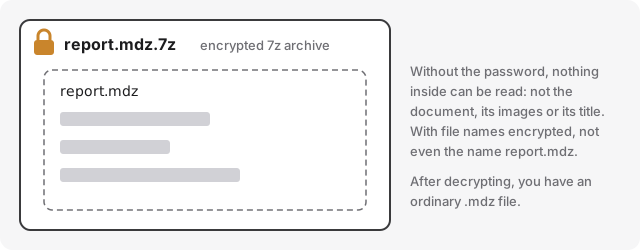
Put the .mdz file in an encrypted 7z archive, and name the result
report.mdz.7z so whoever decrypts it knows they'll get an .mdz file.
Windows, with 7-Zip:
- Right-click the
.mdzfile and choose 7-Zip > Add to archive.... - Set Archive format to 7z.
- Under Encryption, enter a password twice, keep AES-256, and tick Encrypt file names.
- Change the archive name to end in
.mdz.7z, then select OK.
macOS, with Keka:
- Choose 7z as the format, set a password, and turn on the option to encrypt file names.
- Drop the
.mdzfile onto Keka. - Rename the result to end in
.mdz.7zif Keka named it differently.
Command line:
7z a -t7z -mhe=on -p report.mdz.7z report.mdz
-p asks for the password, and -mhe=on encrypts the file names too.
Depending on how 7-Zip is installed, the command may be 7zz.
To open it, the recipient extracts report.mdz.7z with 7-Zip or Keka,
enters the password, and opens report.mdz as usual.
The same idea works with other encryption tools, for example age or GPG:
# age
age -p -o report.mdz.age report.mdz      # encrypt
age -d -o report.mdz report.mdz.age      # decrypt

# GPG
gpg -c report.mdz                        # encrypt, making report.mdz.gpg
gpg -o report.mdz -d report.mdz.gpg      # decrypt
Option 2: a sealed envelope
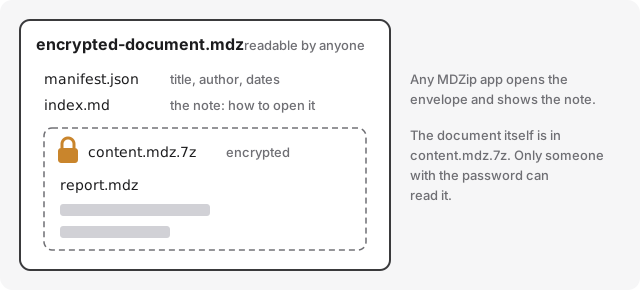
This keeps the file an .mdz. Inside is a short note, which any MDZip app
shows, and the encrypted document, which no MDZip app can read without
decrypting it first. Use it when a file has to stay an .mdz — for example,
in a folder of .mdz documents where everything should open — or when the
recipient needs instructions in front of them.
An envelope holds three files:
index.md: the note people see, explaining what's inside and how to open it;content.mdz.7z: the document, encrypted as in option 1;manifest.json: written for you when the envelope is made.
Download an example envelope and
open it in the web editor.
Its password is mdzip-example.
Make an envelope
- Encrypt the document as in option 1, and name the result
content.mdz.7z. - Make a folder holding
content.mdz.7zand anindex.mdwith your note. You can start from the example's note. - Turn the folder into an
.mdz:in the packager: under Archive options, add a line
**/*.7zto Include filters, so the encrypted file is included (by default only Markdown and images are);or with the
mdzcommand line:mdz create envelope-folder encrypted-document.mdz --title "Encrypted document" --filter "**/*"Without
--filter "**/*", the encrypted file is left out.
- Check that the encrypted file made it in:
mdz ls encrypted-document.mdzshould listcontent.mdz.7z. (mdz validatecan't catch this one: an envelope without it is still a valid.mdzfile.)
What stays readable
Anyone with the envelope can read everything outside the encrypted file:
- the envelope's file name;
- the note in
index.md; manifest.json: the title, description, author and dates;- the encrypted file's name and size.
Keep all of these general ("Encrypted document", not the real title), and never put the password or a hint in any of them.
Opening an envelope
- Open the
.mdzas a ZIP file (rename it to.zipfirst if your computer asks) and copy outcontent.mdz.7z. - Extract
content.mdz.7zwith 7-Zip or Keka, entering the password. - Open the
.mdzfile you get in any MDZip app.
An MDZip app that edits the envelope keeps the encrypted file as it is when it saves: apps keep files they don't recognize (Section 14.1).
Not a standard (yet)
The envelope is a way of using MDZip, not part of the specification. MDZip apps show the note; they don't ask for the password or open the document inside. If you'd like apps to do that, tell us. If there's demand, a future version of the specification could define it, so that every app handles it the same way.
What not to do
- Don't password-protect the ZIP and call it
.mdz. It isn't a valid.mdzfile, other MDZip apps can't open it, and the older ZIP encryption many tools use by default ("ZipCrypto") is easy to break. - Don't send the password with the file. Use a different channel: a phone call, a text message or a password manager.
- Use a long password. A phrase of several unrelated words is easier to remember and harder to guess than a short, complicated one.
This page renders from encryption.mdz (MDZip, ~5 KB, updated 2026-10-24) — one self-contained file. Download it, open it in the web editor, or read how these pages are made.