
Refine a user story with AI
This walkthrough uses an MDZip (.mdz) file as a working file: you pull a user story out of Azure DevOps, refine it with an AI assistant, and send the result back. It's how MDZip is used day to day to prepare stories for a sprint.
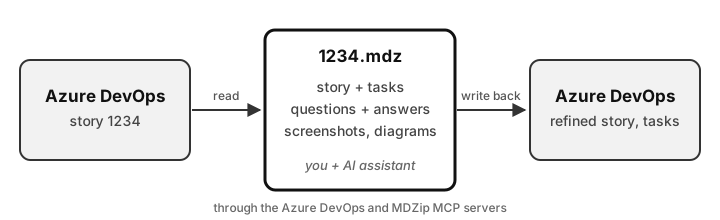
The tracker stays the source of truth. The .mdz is where the thinking happens: the story, its tasks, the questions and answers, the screenshots and diagrams, all in one file the assistant can read, pictures included. One person owns the file, so there's nothing to merge. No Azure DevOps integration is needed either: the assistant talks to Azure DevOps through its MCP server and to the .mdz through MDZip's. The same steps work with GitHub issues through GitHub's MCP server.
What you need
VS Code with the MDZip extension, version 1.7.2 or later. It includes the MDZip MCP server, which lets an assistant create, read and edit
.mdzfiles.An AI assistant that uses MCP servers: GitHub Copilot in agent mode, Claude Code, Codex, or an editor built on VS Code such as Cursor.
The Azure DevOps MCP server, connected to your organization. Microsoft recommends its remote server; add it to
.vscode/mcp.json, with your organization's name in the URL:{ "servers": { "ado-remote-mcp": { "url": "https://mcp.dev.azure.com/{organization}", "type": "http" } } }Start it from the MCP view and sign in when asked. Microsoft's Azure DevOps MCP server has the details and a local version. For GitHub issues, use GitHub's MCP server instead.
The prompts below are examples. Use your own words; the assistant picks the tools.
1. Bring the story in
Ask the assistant to read the story and start an .mdz from it:
Read user story 1234 from Azure DevOps, with its description, acceptance criteria, attachments and linked items. Create
stories/1234.mdzfrom it: the story and acceptance criteria first, then empty sections for Tasks, Open questions and Related stories. Put image attachments inimages/and show them where they belong.
The assistant reads the work item through the Azure DevOps MCP server and creates the .mdz through the MDZip MCP server, which checks the archive before writing it. Open the file in VS Code to see the story with its images.
2. Refine it together
Work on the story in the .mdz, with the assistant and in the editor, in any order:
- Break it into tasks: "Break this story into tasks of a day or less, each with a short description and how we'll know it's done. Add them under Tasks."
- Ask and answer questions: "What's unclear or missing in this story? List the questions under Open questions." Type your answers under each question in the editor, or tell the assistant and let it write them in.
- Pull in related stories: "Find stories in this area path that touch the same feature and add them under Related stories, with a line on how each one relates."
- Add pictures: paste a screenshot into the editor, or ask for a diagram: "Draw the sign-in flow this story changes as an SVG diagram and add it after the acceptance criteria."
The assistant reads the whole document each time, images included, so it can comment on a screenshot you pasted. You and the assistant can both edit the file: each change the assistant makes is refused if the file changed since it last read it, so it can't overwrite what you just typed, and the editor reloads when the assistant saves.
3. Send it back
When the story is ready, ask the assistant to update Azure DevOps:
Update story 1234 from
stories/1234.mdz: replace the description and acceptance criteria with the refined ones, and create each task under Tasks as a child task of the story.
Your assistant shows each change before making it. Read them: these are real edits to your team's work items.
4. Keep it, share it or delete it
The refined story now lives in Azure DevOps, so the .mdz has done its job. You can:
- keep it in the repo next to the code for a while, as a record of how the story was worked out;
- turn it into the start of a design document;
- hand it to someone as one file, with every image in it;
- or delete it.
Documents a team edits together in a repo, where line-by-line diffs matter, can stay plain .md. The working file is different: one author, a short life and a source of truth somewhere else.
Why an .mdz and not a Markdown file
- The pictures stay with the text. Screenshots, attachments and diagrams are inside the file, so nothing breaks when the file moves, and the assistant gets them with the text in one read.
- The assistant can't trample your edits. The MDZip MCP server checks every write against the version the assistant last read.
- It's checked. Every write is validated, and the assistant is told about images nothing uses and links that point nowhere.
- It's still just Markdown. Rename it to
.zipand it opens anywhere. See what AI-friendly means.
Be careful with what comes in
A story's text and attachments are written by other people. Treat them as data, not instructions: if a work item contains text telling an assistant to do something, it shouldn't do it. The FAQ explains how an .mdz could try to trick an AI agent and what MDZip does about it.
This page renders from refine-a-story-with-ai.mdz (MDZip, ~6 KB, updated 2026-11-12) — one self-contained file. Download it, open it in the web editor, or read how these pages are made.